
Carol Azevedo
A quick guide to adding third-party widgets to Standby Mode Duo. Choose, change, resize, and pick from your best widgets.
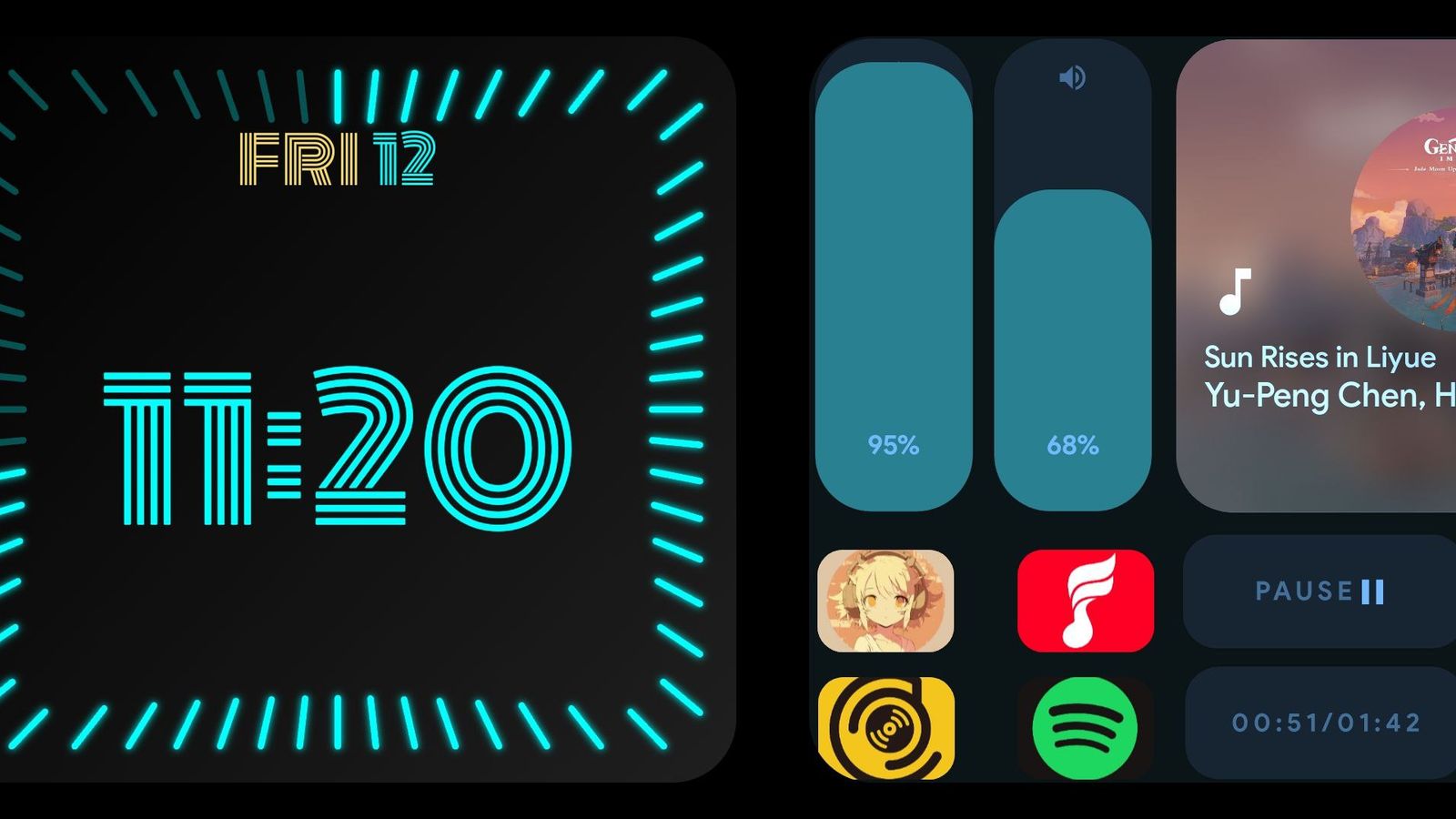
StandBy Mode opens the doors to the entire Android ecosystem. Third-party widgets are external mini-apps that show quick info or shortcuts right on your screen. If an app on your phone has a homescreen widget, it can live on your Standby Mode Duo screen too.
Some popular picks: Samsung Weather, Spotify, Google Calendar, and Google Home. But the options are pretty much endless. And if you're really into customization, you can build your own widgets with KWGT (Kustom Widget Maker).
Want a tutorial on KWGT? Drop a comment to let me know. If there's interest, I'll write one up.
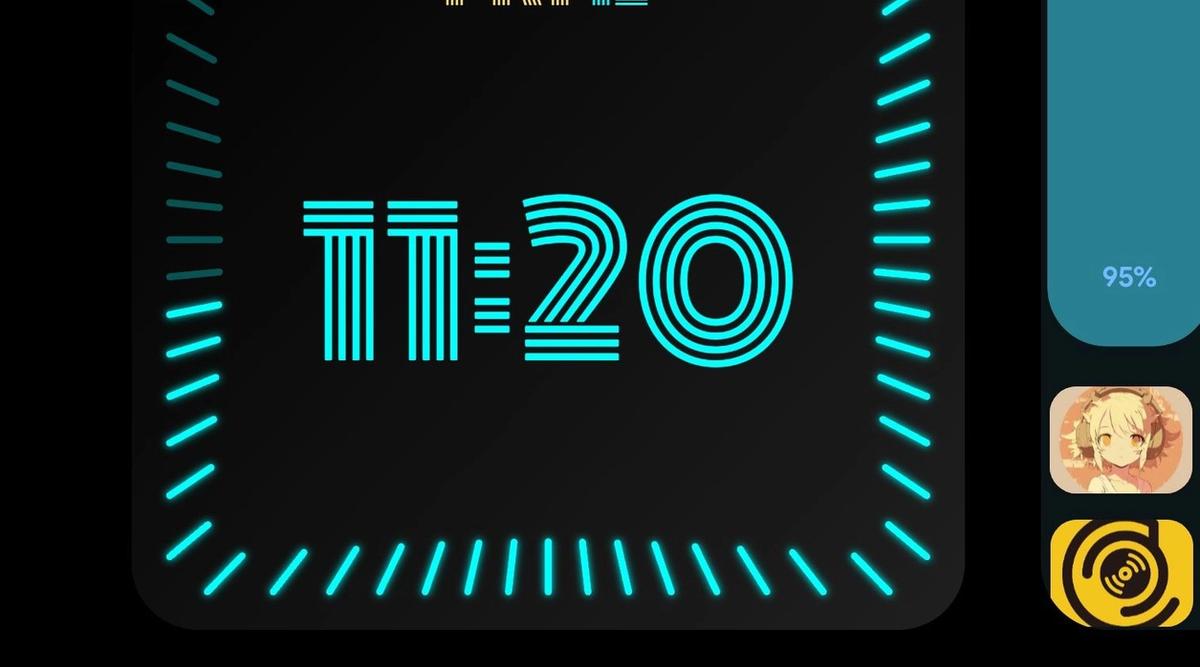
Setting this up takes less than a minute. Here’s exactly how.
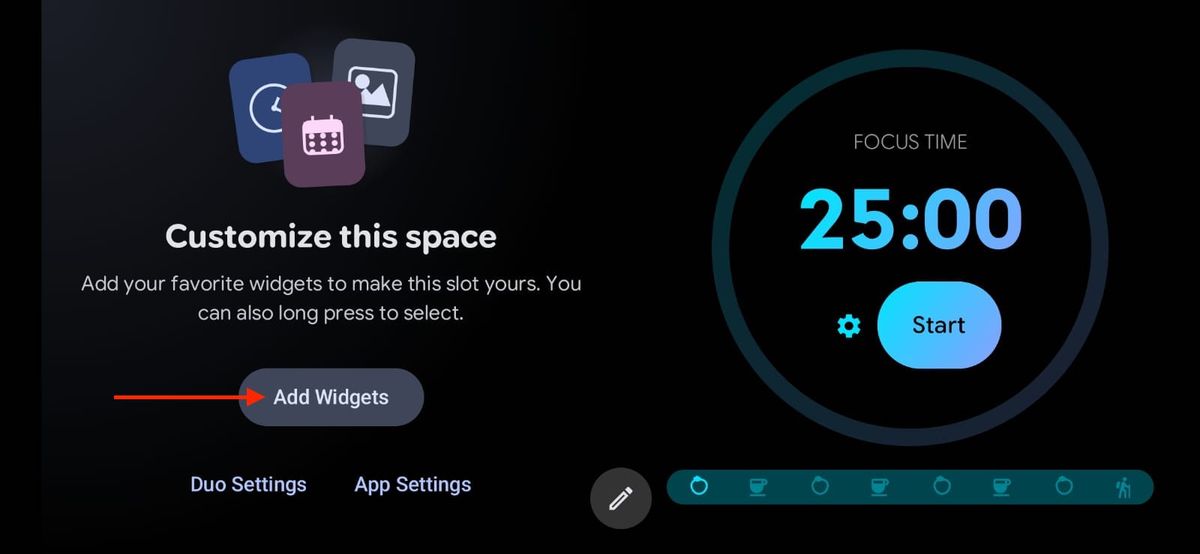
In Duo mode, find the customizable space at the end of your widgets. Tap on the Add Widgets button. (Or just long-press the screen to open this menu.)
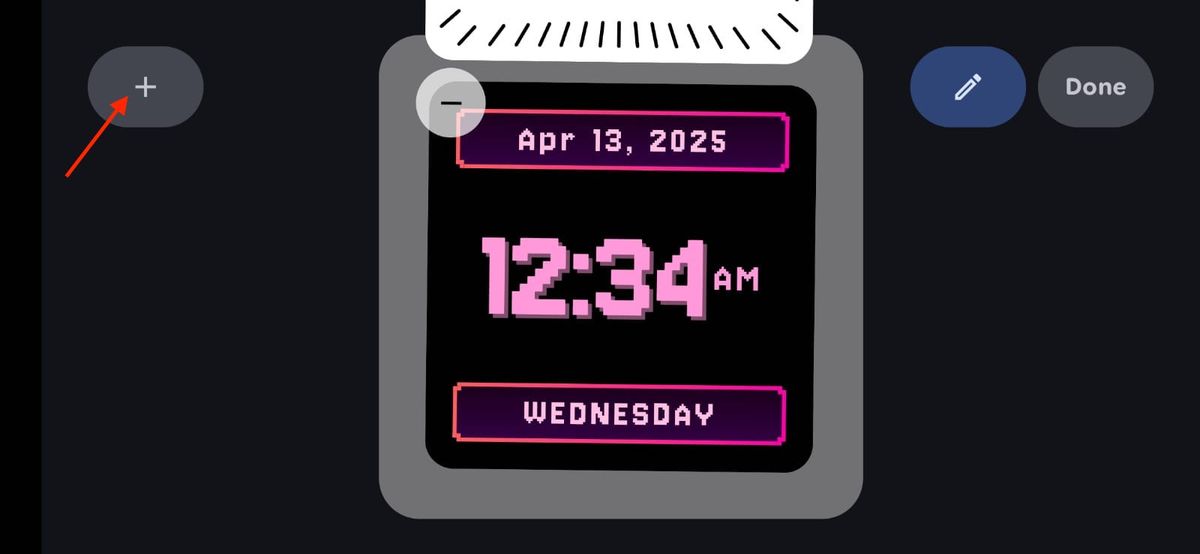
Once the customization screen opens, tap the "+" (Plus) button in the top-left corner to add a new element.
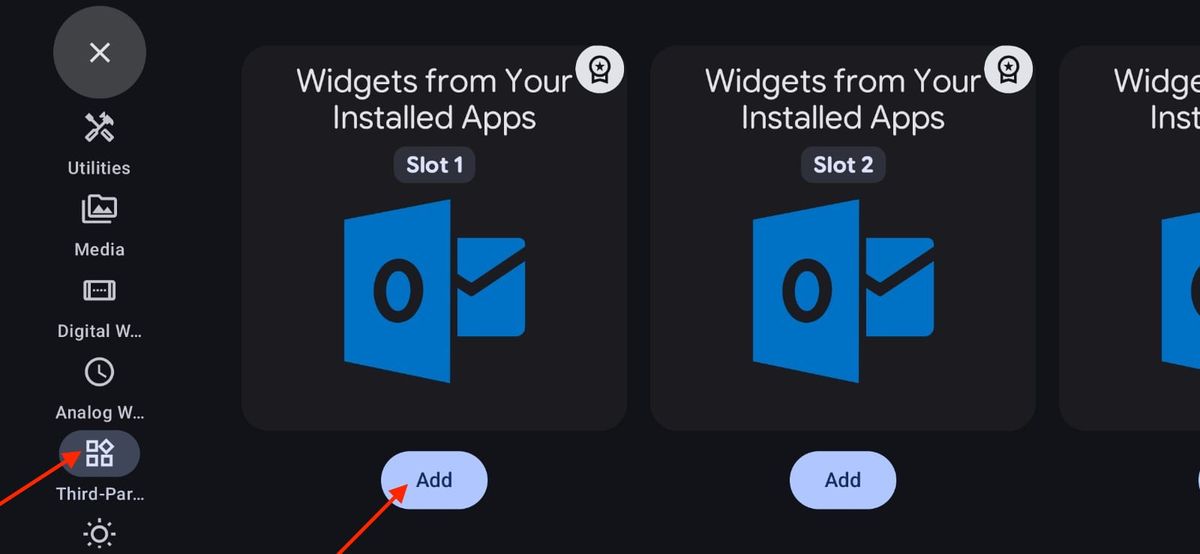
A side menu will pop up on the left. Scroll down and tap on the Third-Party option (the icon with four small shapes). You’ll see available slots (Slot 1, Slot 2, and so on) for widgets from your installed apps. Pick the slot you want and tap the Add button below it. Free users get one third-party widget; premium users can add up to 6. Tap the Done button to exit the editing screen.
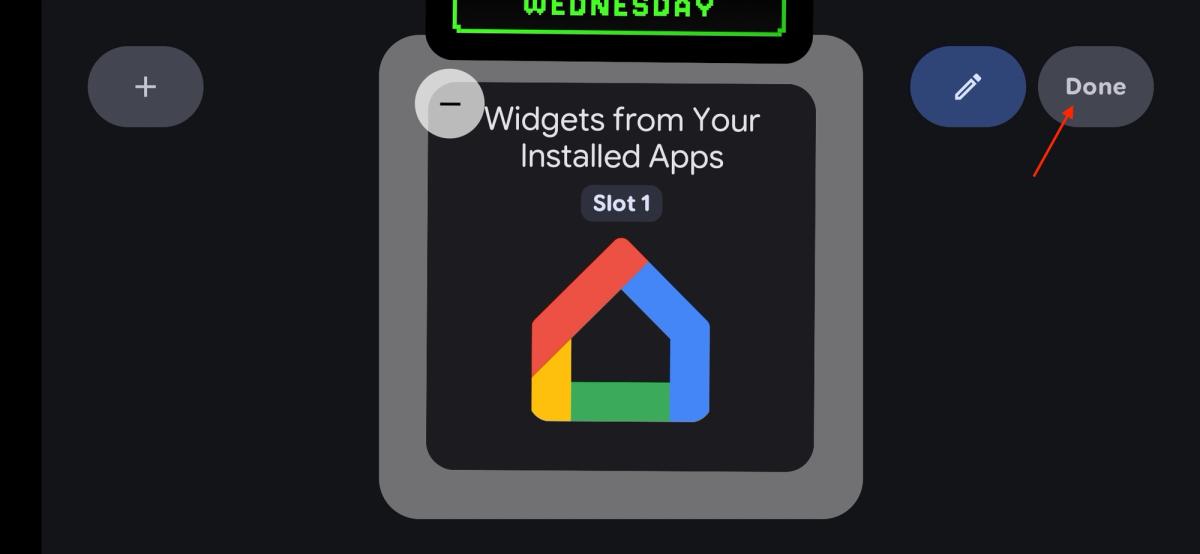
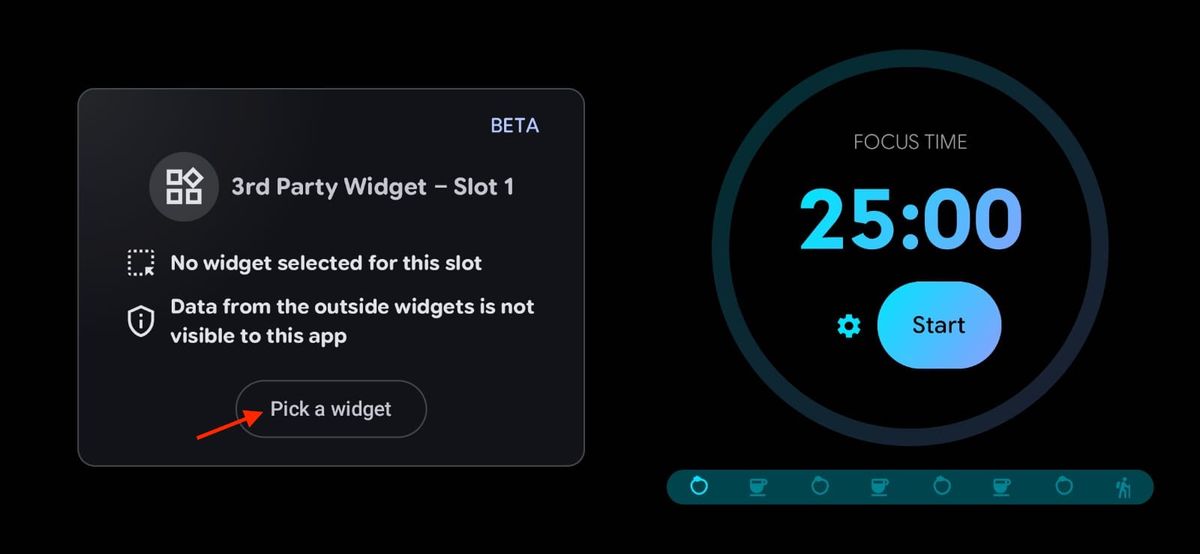
Pick a Widget: Once the slot is on your screen, tap the Pick a widget button. A system prompt will pop up so you can choose a widget from any of your installed apps (such as Google Home, Outlook, etc.).
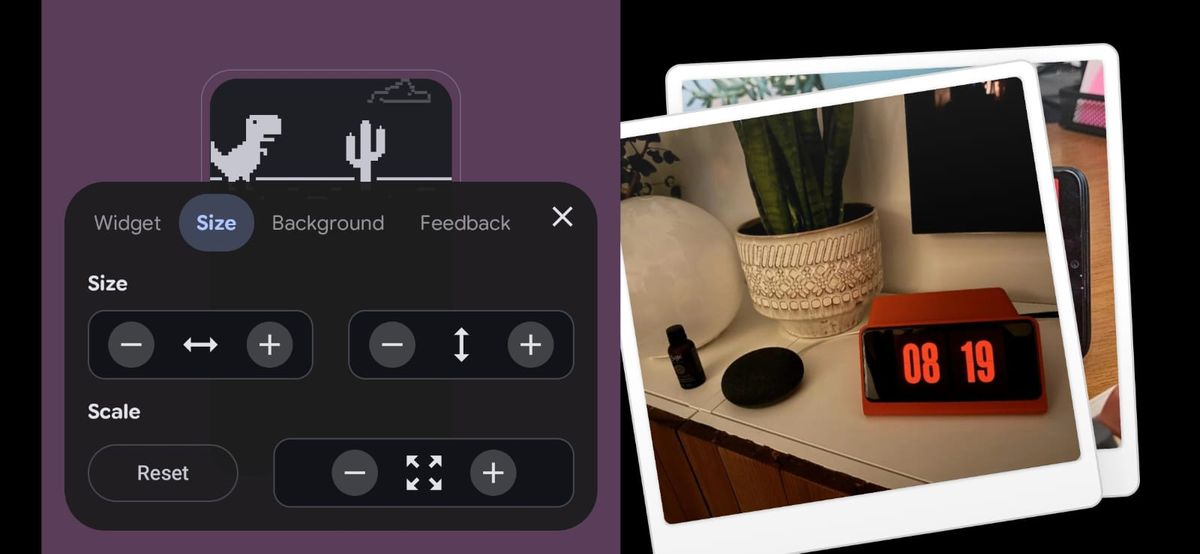
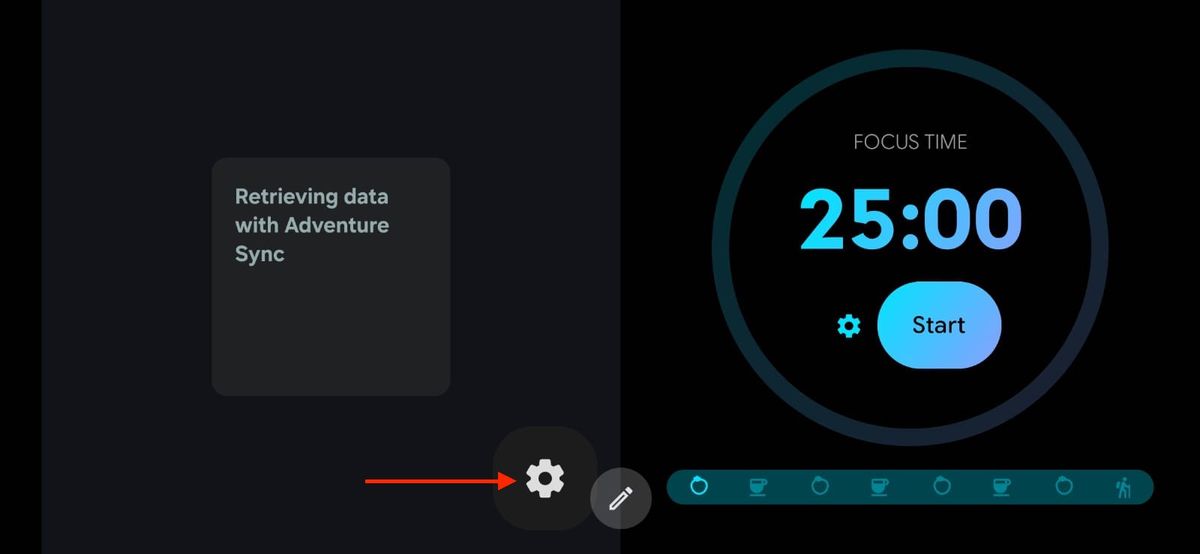
Tap the gear icon to open the customization menu. From there, you can resize it (use the arrows to stretch it wider or taller), scale it up or down, or pick a background color that matches your vibe. Hit Reset anytime if you want to start over.
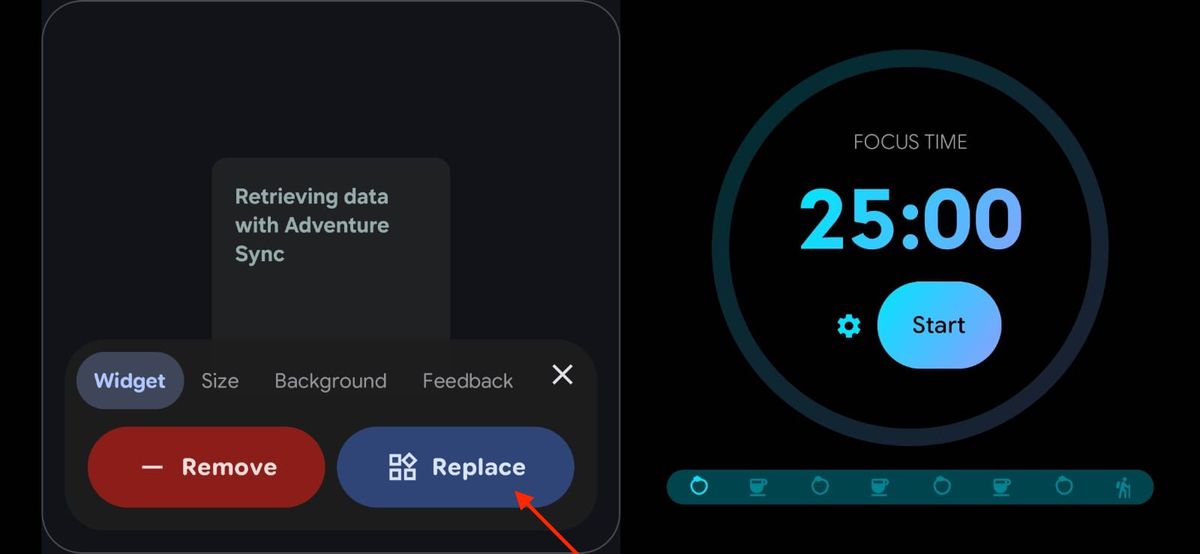
Picked a third-party widget that doesn’t quite work for you? Just swap it out!
Find your widget in Duo mode and open the settings in the bottom-right corner. Tap Replace and pick a new one.
That's all for today.
Btw, it's Carol here. I manage Standby Mode’s socials and support. I’ll drop in from time to time with topics I think you’ll find useful. Hope this helps you get more out of the app! If you have questions, suggestions, or just wanna say hi, e-mail me at support@zetabitapps.com

Carol here! I manage Support and Marketing in the StandBy Mode App for more than a year now. I love talking about the app with people, because I enjoy tech, experiments and I've watched the app grow since the begining, back when Wesley (our dev/founder) and I were just friends (now we're also neighbours, gymbros and co-workers). Feel free to talk to me about the app or maybe some tips on what to do if you come to Brazil 🇧🇷